HSI Card Setup
Email support@enrollware.com to have the Support Team enable the HSI API.
Then, email the HSI Helpdesk and request an API Key for Enrollware (~32 characters).
HSI cards can now be issued within Enrollware!
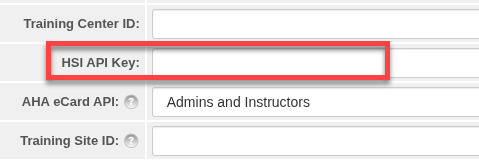
Once the key has been acquired, navigate to Settings > Site Settings > Basic Site Settings section > paste the string into the HSI API Key field. Select Update at the bottom.

Navigate and select the "My Account" link in the top left corner of your Enrollware page.
Enter your HSI Instructor Id.
If you are issuing cards for another instructor, they must also have their HSI Instructor Id in their My Account page.


For any existing HSI courses, navigate to your Settings tab > Course Types > select a Course Type and click the Action icon on the far right.

Change Course Certifying Body to Health Safety Institute.
Select the appropriate Card Type and Update Card Type at the bottom of the page.

If this is a blended course, you will need to set up a class number in HSI and link it to the course using the HSI class number. Create the class in HSI and skip the roster by clicking on step 3.

It should now display the class number.

You can’t get this far if you don’t have credits for the programs, so you will need at least one credit to get this far for each program.
Enter the class number in the HSI Class Number Field.

If a blended course is selected, a link is sent for the online portion of the class when the confirmation email is sent to the student. The online portion must be completed before a certificate can be issued
You will now be able to issue cards as usual for past classes.
Click the Print Cards button on the Class page.
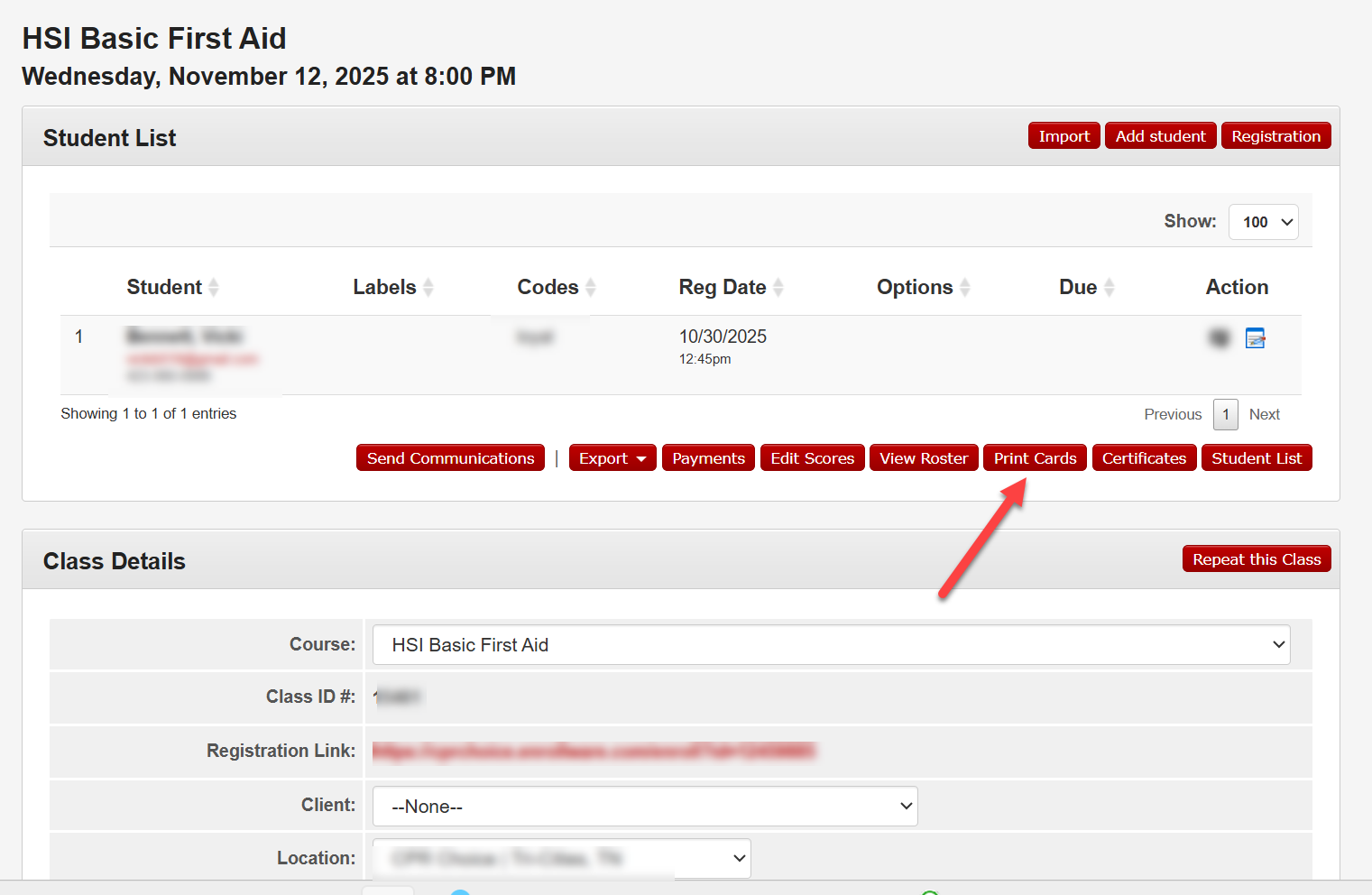
The HSI Cards tab will now appear. You will also be able to see the Online Class Status if it is a blended course.

Select one or more students who need cards. Verify the student name and email address are correct. Click the Issue eCards button and confirm the Results.
Congratulations! Cards have been issued.
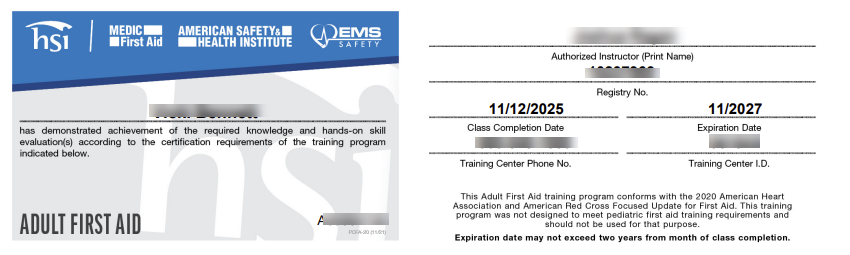
To view the card, you can click the card icon on the Print Cards page.

Selecting the card icon will show you a card similar to this:
You are able to see the Online Class URL when you are viewing the blended course.

If needed, you can reissue the online class link by navigating to the Edit Student page.
